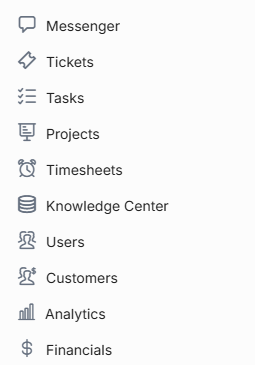
Your User Apps sidebar is located on the far left side of your workspace. In OneDesk, applications define what you manage, and this sidebar contains all the apps available to you. In OneDesk, you can grant different levels of access to all your applications on the per-user level. This allows you to control what applications your users are able to access and what they can and can’t do in each one.
You can set different levels of access on the following applications in OneDesk:
Understand Permissions & Access Levels
A user in OneDesk can have administrator-level permissions or non-administrator-level permissions.
Administrators are granted full access to all applications and can take all the following actions:
- Publish items
- Post customer replies
- Edit messages
- Publish articles
- Create, edit, & delete macros & saved replies
Administrators can see all projects (even private ones) and join projects without permission.
Non-administrators need to be granted access on a per-application basis and their ability to take actions can be limited.
For non-administrators, you can decide if they can:
- Publish items: your user can create tickets, tasks, and other types of items you configure
- Post customer replies: your user can post customer-facing replies in conversations on items or in the messenger
- Edit messages: your user can edit messages that have been posted in conversations
- Manage Macros: your user is able to configure, edit, and/or delete macros and saved replies
And you can also assign levels of access to these applications:
TICKETS
- Full Access: User has full access to the Tickets Application.
- Standard Access: User can access the Tickets application and create tickets, but cannot archive or delete them.
- Limited Access: The Tickets application is hidden for the user and “Add Ticket” is hidden from the Add menu. The user cannot delete Tickets.
TASKS
- Full Access: User has full access to the Tickets Application.
- Standard Access: User can access the Tasks application and create tickets, but cannot archive or delete them.
- Limited Access: The Tasks application is hidden for the user and “Add Task” is hidden from the Add menu. The user cannot delete Tasks.
TIMESHEETS
- Full Access: User has full access to the Timesheets Application.
- Standard Plus Access: User can access the Timesheets application, create timesheets, and edit their own timesheets.
- Standard Access: User can access the timesheets application and create timesheets, but cannot edit or delete them.
- Limited Access: The Timesheets application is hidden for the user. The user can create but not edit or delete timesheets. The user can see timesheets on the item detail panel.
- Timer Access Only: Timesheets application is hidden from the user. User can only submit time using timers. The user cannot create, edit, or delete timesheets. The user can see timesheets on the item detail panel.
CUSTOMER & CUSTOMER ORGANIZATIONS
- Full Access: User has full access to the Customers & Customer Organizations Application.
- Standard Access: User can access the Customers Application and create customers and customer organizations, but cannot edit or delete them.
- Limited Access: The Customers Application is hidden for the user and Customers and Customer-Organizations are hidden from the Add menu.
USERS & TEAMS
- Full Access: User has full access to the Users & Teams Application.
- Limited Access: The Users & Teams Application is hidden for the user and the Users & Teams are hidden from the Add menu. Users cannot Create, Update or Delete users or teams.
PROJECTS & PORTFOLIOS
- Full Access: User has full access to the Projects & Portfolios Application.
- Limited Access: The Projects Application is hidden from the user and Projects and Portfolios are hidden from the Add menu. Users cannot delete, clone, share, archive, or unarchive projects.
ANALYTICS
- Full Access: User has full access to the Analytics Application.
- Limited Access: The Analytics Application is hidden from the user.
MESSENGER
- Full Access: User has full access to the Messenger Application.
- Standard Access: User can access the Messenger application but cannot lock conversations.
- Limited Access: The user can access the Messenger Application but cannot edit messages or send messages to customers.
FINANCIALS
- Full Access: User has full access to the Financials Application.
- Limited Access: The Financials Application is hidden from the user.
User permissions can be set in each user’s profile page. Access your users from the Users app on the left side bar, then double click the desired user to access their permission settings.