First-in, first-out queues feel fair, but they let a password reset sit ahead of an outage. Going off gut feeling works until the team or queue grows too much. An impact × urgency matrix gives everyone the same rules, takes seconds to apply, and is simple enough to automate. This guide covers how to define each axis, the matrix itself, worked examples, and a step-by-step process you can adopt this week.
tldr: Prioritize support tickets by scoring each one on two questions: how many people or how much of the business it affects (impact), and how quickly that harm grows if nobody acts (urgency). Combine the two scores in a matrix to get a priority level from P1 to P4, and attach a response target to each level so the team knows what to work on next.
What impact and urgency mean
Impact measures the size of the problem while urgency measures how quickly it gets worse. Keeping them separate stops the loudest ticket from automatically becoming the most important one.
Impact: who and what is affected? Score it on a three-level scale.
| Level | Impact definition | Typical signals |
| High | Many users, a key customer, or a revenue-critical function is affected | Whole team or account can’t work; checkout, login or billing is down; data loss or security exposure |
| Medium | A group of users or one important workflow is degraded | One department affected; a feature is broken but has a workaround |
| Low | One user, or a cosmetic or convenience issue | Single-user setting, how-to question, typo, feature request |
Urgency: what happens if we wait? Score it on the same three levels.
| Level | Urgency definition | Typical signals |
| High | Harm is happening now or will grow within hours | Active outage, a hard deadline today, an issue spreading to more users |
| Medium | Work is slowed, and it will hurt if left for days | Workaround exists but is costly; deadline this week |
| Low | Nothing gets worse if it waits | Questions, enhancements, scheduled changes |
Write these definitions down and share them with every agent. Two people should score the same ticket the same way; if they don’t, the definitions need sharper signals, not more levels.
The impact × urgency matrix
Find the ticket’s impact row and urgency column; the cell is its priority. Only high impact plus high urgency earns P1, which keeps P1 rare enough to mean something.
| Impact ↓ / Urgency → | High urgency | Medium urgency | Low urgency |
| High impact | P1 – Critical | P2 – High | P3 – Medium |
| Medium impact | P2 – High | P3 – Medium | P4 – Low |
| Low impact | P3 – Medium | P4 – Low | P4 – Low |
Each priority level then needs a commitment attached (via SLAs), or the label changes nothing. The targets below are a common starting point for business-hours support teams. Adjust them to your staffing, plan tiers and contracts.
| Priority | First response target | Resolution target | Who gets notified |
| P1 – Critical | 1 hour (24/7 if you offer it) | 4–8 hours, or a workaround in place | On-call lead and the affected account owner, immediately |
| P2 – High | 4 business hours | 1–2 business days | Team lead if no response by target |
| P3 – Medium | 1 business day | 3–5 business days | Assignee only |
| P4 – Low | 2 business days | Next planned cycle or backlog | Nobody; reviewed in weekly triage |
Three rules keep the matrix honest:
- Customer tier adjusts targets, not priority. A premium customer’s P3 may get a faster SLA, but it is still a P3.
- Priority can change. Re-score when a workaround is found (urgency drops) or when more users report the same issue (impact rises).
- Requesters suggest; agents decide. Let customers pick urgency on the intake form, but treat it as input, not the final score.
Ticket prioritization examples
These ten tickets show how the matrix sorts a realistic queue. Notice that the loudest ticket isn’t always the top priority.
| Ticket | Impact | Urgency | Priority | Why |
| Login is failing for all users | High | High | P1 | Everyone is blocked and it’s happening now |
| Payments failing at checkout for some customers | High | High | P1 | Revenue loss grows every hour |
| Reporting dashboard won’t load for the finance team, month-end close is tomorrow | Medium | High | P2 | One team, but a hard deadline |
| Key account’s integration sync is delayed by a few hours | High | Medium | P2 | Large account affected; data catches up, so harm grows slowly |
| CEO can’t access a shared folder before a board meeting in 2 hours | Low | High | P3 | One user, time-sensitive; often handled faster through a VIP SLA rather than a higher priority |
| Export to CSV is broken; copy-paste works | Medium | Medium | P3 | Real friction, workaround exists |
| New hire needs software installed next Monday | Low | Medium | P4 | Scheduled, single user |
| Bulk-edit feature times out for large accounts | Medium | Low | P4 | Rarely used, workaround is editing in batches |
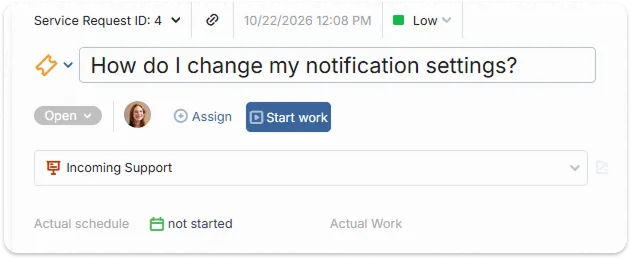
| “How do I change my notification settings?” | Low | Low | P4 | Answer with a help-center article |
| Request: add dark mode | Low | Low | P4 | Feature request; route to the product backlog |
Take note of the last row. Some tickets are not really support work at all. A feature request or a bug fix that takes weeks belongs in a project backlog, which is covered further down.
How to prioritize support tickets, step by step
Six steps take you from an unsorted inbox to a queue that sorts itself. Steps 1–3 are setups you do once while steps 4–6 run on every ticket.
- Write your impact and urgency definitions. Use the tables above as a draft, add signals specific to your business, and get agreement from the team.
- Map the matrix to priority values in your help desk. Make priority a required field so no ticket sits unscored.
- Attach SLA targets to each priority. Set first-response and resolution targets per level. In OneDesk, an SLA policy is a grid of time limits by priority for each reply type (first reply, next reply, resolution and more), and automations can apply different policies flexibly.
- Capture urgency at intake. Consider adding a “How is this affecting you?” question to your web form.
- Triage and route automatically. Let rules do the first pass: route by customer, ticket type or keywords, and assign high-priority tickets to the right person. OneDesk’s auto-triage rules, for example, can assign a ticket to a manager the moment its priority is raised to the top level.
- Watch for breaches and re-score. Turn on warnings before an SLA is missed. Lower priority when there’s a workaround or raise it when duplicate reports pile up.
Once a week, sample ten closed tickets and check whether their priority was right. If agents keep overriding the same kind of ticket, update the definitions.
Common prioritization mistakes
Most broken priority schemes fail in one of five predictable ways.
- Everything is P1. If more than a few percent of tickets are critical, the definition is too loose. Tighten what “high impact” means.
- Letting customers set the final priority. Requesters always feel urgent. Use their input for urgency, then score impact yourself.
- Mixing up VIP status and priority. Handle important customers through faster SLA targets, not by inflating priority.
- Never re-scoring. A ticket’s priority on day one is a guess. Update it as you learn more.
- Leaving long fixes in the support queue. A bug that needs a sprint of engineering work ages in the queue, breaches every SLA, and hides the tickets you can actually close.
When a ticket becomes project work
Priority tells you what to do first; it doesn’t tell you where the work belongs. Move a ticket out of the support queue and into planned project work when any of these is true:
- The fix needs more than a day or two of effort, or more than one person.
- It depends on other work, such as a release, a vendor, or another team.
- The same issue keeps coming back and needs a root-cause fix.
- It’s a feature request or a change that belongs on the roadmap.
The handoff is where most teams lose track. Support closes the ticket, engineering opens a task in a different tool, and the customer hears nothing until someone remembers to check.
This is the gap a combined help desk and project management tool closes. OneDesk keeps tickets and tasks in one application, so the request never leaves the system it came in on:
- Convert a ticket into a task. Any ticket can become a task with dependencies, a schedule and effort points, and slot into a larger project plan.
- Reassign as work moves. Auto-triage rules can reassign a ticket or task when it changes status or is pushed to a different project, so the right person picks it up.
- Keep customers informed. Through the customer portal, customers can view and discuss the items they submitted, and admins choose which fields they see, such as priority or % complete.
- Automate the handoff. Workflow automations can route work to a project, start a project from a template, and notify people when status changes.
The result is one priority system across support and delivery, instead of two queues that never agree.
FAQ
Score each ticket on impact (how many people or how much of the business is affected) and urgency (how fast the harm grows), then combine them in a matrix to get a priority from P1 to P4. Attach response and resolution targets to each level.
Four is enough for most teams. Fewer levels can’t separate an outage from an annoyance; more levels lead to arguments over the difference between a P4 and a P5.
Let them indicate urgency on the intake form, but have agents or rules set the final priority. Otherwise most tickets arrive marked urgent.